Ich nutze gerne eine sogenannte “Catch All Mailbox“. Was genau das ist, ist schnell erklärt. Für meine Domain langlitz-it.de gibt es eine Mailbox, die alle Mails annimmt, für die keine Mailadresse bekannt ist. Sie erreichen mich damit z.B. auch über rumpelstilzchen@langlitz-it.de oder jede andere nicht eingerichtete Adresse. Eine genauere Beschreibung und die Einrichtung der Catch All Mailbox für Exchange, auch mit einem netten Anwendungsbeispiel, finden Sie hier.
Wie richten Sie diese Funktion bei Office 365 ein? Im Prinzip relativ einfach über eine entsprechende Transportregel, also ähnlich wie auch bei einer Exchange on premises Lösung.
Vorher aber generell freigeben, daß alle Mails angenommen werden:

Zunächst erstellen Sie eine Verteilerliste, in der alle User außer die Catch All Mailbox enthalten ist.
Dann erstellen Sie die Transportregel. Wählen Sie dazu über das Microsoft Office 365 Admin Center das Exchange Admin Center aus. Darin gehen Sie zum Punkt Nachrichtenfluss und wählen den Menüpunkt Regeln. Erstellen Sie eine neue Transportregel in dem Sie das Pluszeichen wählen:
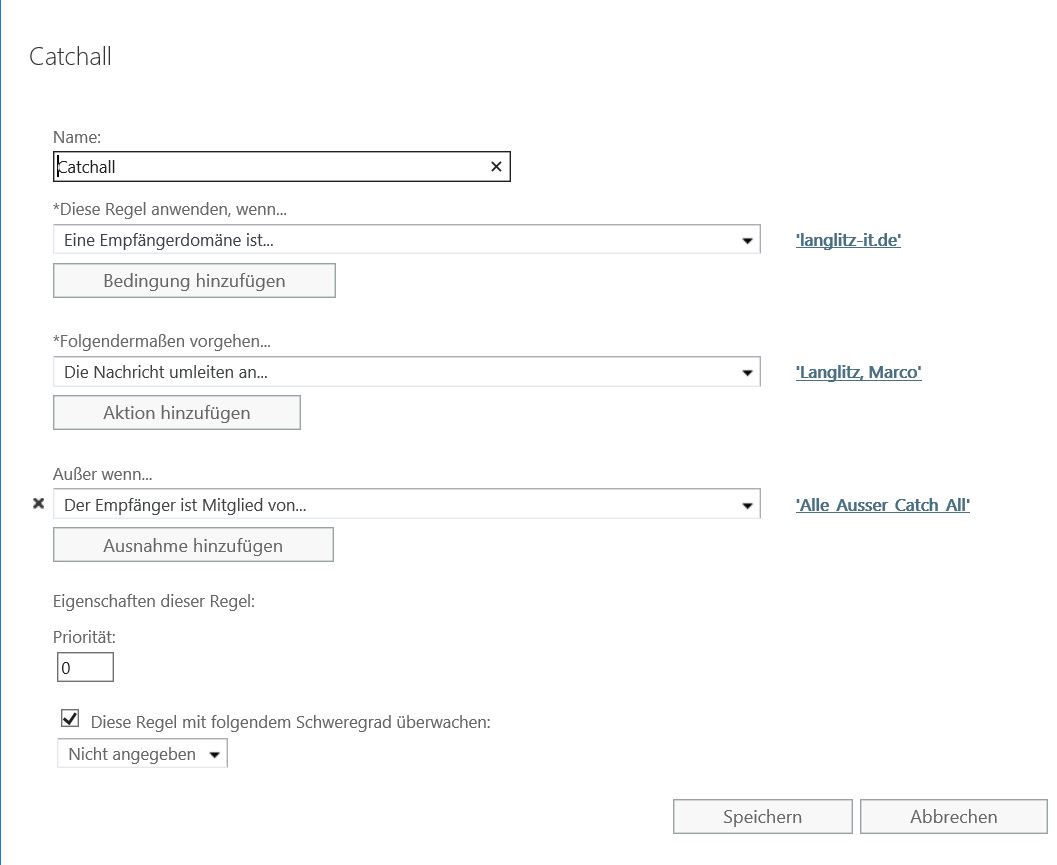
Die einzelnen Punkte sind zum großen Teil selbsterklärend. Ich nenne die Regel Catchall.
Die Konfiguration besagt:
Alles was an langlitz-it.de gesendet wird, wird weitergeleitet an die Mailbox Langlitz, Marco. Ausnahmen gibt es nur, falls der Empfänger Mitglied der Gruppe “Alle Ausser Catch All” sein sollte, dann wird die Mail logischerweise an diese Mailbox zugestellt.
Das war es auch schon. Die Catch All Mailbox sollte damit verfügbar sein.
Part 1 – Tell Office 365 it is not authoritative

- Log onto Office 365 admin portal
- Go to Admin–>Exchange
- (1) Click “Mail Flow” icon
- (2) Click “Accepted Domains”
- (3) Highlight your vanity domain and then click the pen (edit) button
- (4) Change the pop-up from “Authoritative” to “Internal Relay”
- (5) Click SAVE
- Ignore any warning about needing to set up transport rules.
At this point, any message sent to <anyaddres>@mydomain.com will be received, then bounced back to the MX records and you will probably get a mail loop, so now need to set up rule…
Part 2 – Set up divert rule
You need to have a mailbox, shared or normal which is going to receive the catchall mail. Hopefully you have this set up already. You can also use a “group” if you require the catch-all going to multiple people (not recommended, but you can use a group and just put a single target person in it)
You also need to create a group (e.g. “All”) that directly contains all mailboxes and groups which you do NOT want diverted. Add users/groups individually to this group (do not nest groups). This group MUST contain the catch-all mailbox or catch-all group.

- Log onto Office 365 admin portal
- Go to Admin–>Exchange
- (1) Click “Mail Flow” icon
- (2) Click “Rules”
- (3) Click the “+” icon, then “Create a new rule”
- As soon as the new rule box appears, click “More Options…” link towards the bottom of the page
- (4) Give rule a name, e.g. Catchal
- (5) Change the “apply this rule if…” to “The Sender is…”–>”Internal/External”–>”Outside this organisation”
- (6) Change the “do the following…” to “Redirect the message to…”–>”These recipients”–> then select your catch-all mailbox
- (7) *OPTIONAL* Click “Add Action” and then “Modify the message properties”–>”Set a message header”, then set the header to “X-Catchall-Rule” and value to “Yes”
- (8) Under “Except if”, Click “Add action” and then “If Recipient…”–>”Is this person”–>and select the “all” Group which contains all exclusions (note – image above incorrectly shows an exclusion of CatchAllMailbox – this should be the “All” group which contains all users/groups INCLUDING the Catchall mailbox/group that you don’t want diverted)
- Save
Wait a couple of minutes for rule to apply, and then test.
Part 3 – Testing
- You can send an email to validaddress@mydomain.com and it should still get through and be delivered unaffected (as recipient exists)
- Send email to <anyrandomaddress@mydomain.com> and it should be delivered to the catch-all email address you specified. If you look at the header of the delivered email, (and you did optional step 7 above), you can see it was the rule that was responsible.

That’s it – I’ve not found any downsides to this, so bemused why Microsoft say it is not available functionality…. Apart from the extra email load on their servers of course!
0 Kommentare